Deploy a RAG Stack in Minutes, Not Weeks
A step-by-step guide to launching a complete retrieval-augmented generation (RAG) stack on your own AWS account with SeaGit: a vector database, an answering API with citations, a private web UI and document sync, from one form in a few minutes.
In minutes
- Pick the RAG Stack template and start the deploy wizard.
- Choose your documents: an S3 bucket you already have, or a new uploads bucket.
- Choose the chat models your organization approves, and deploy.
- Save the two keys shown once, then open the web UI and ask a question.
What you get
One deploy gives you a working “chat with your documents” service that runs in your AWS account. Documents are indexed inside that account, and model calls go to Amazon Bedrock through the stack’s own IAM roles.
- A vector database (Qdrant) on its own encrypted disk, holding the index of your documents.
- The RAG API answers questions from your documents with numbered citations, through a REST API and an OpenAI-compatible
/v1/chat/completionsendpoint. - A private web UI with chat and citations, a model picker and drag-and-drop upload, protected by an access key.
- Sync jobs that keep the index up to date with your S3 buckets: on a schedule, within seconds of a change, or both.
- HTTPS URLs for the API and the UI, with certificates issued automatically.
How it fits together
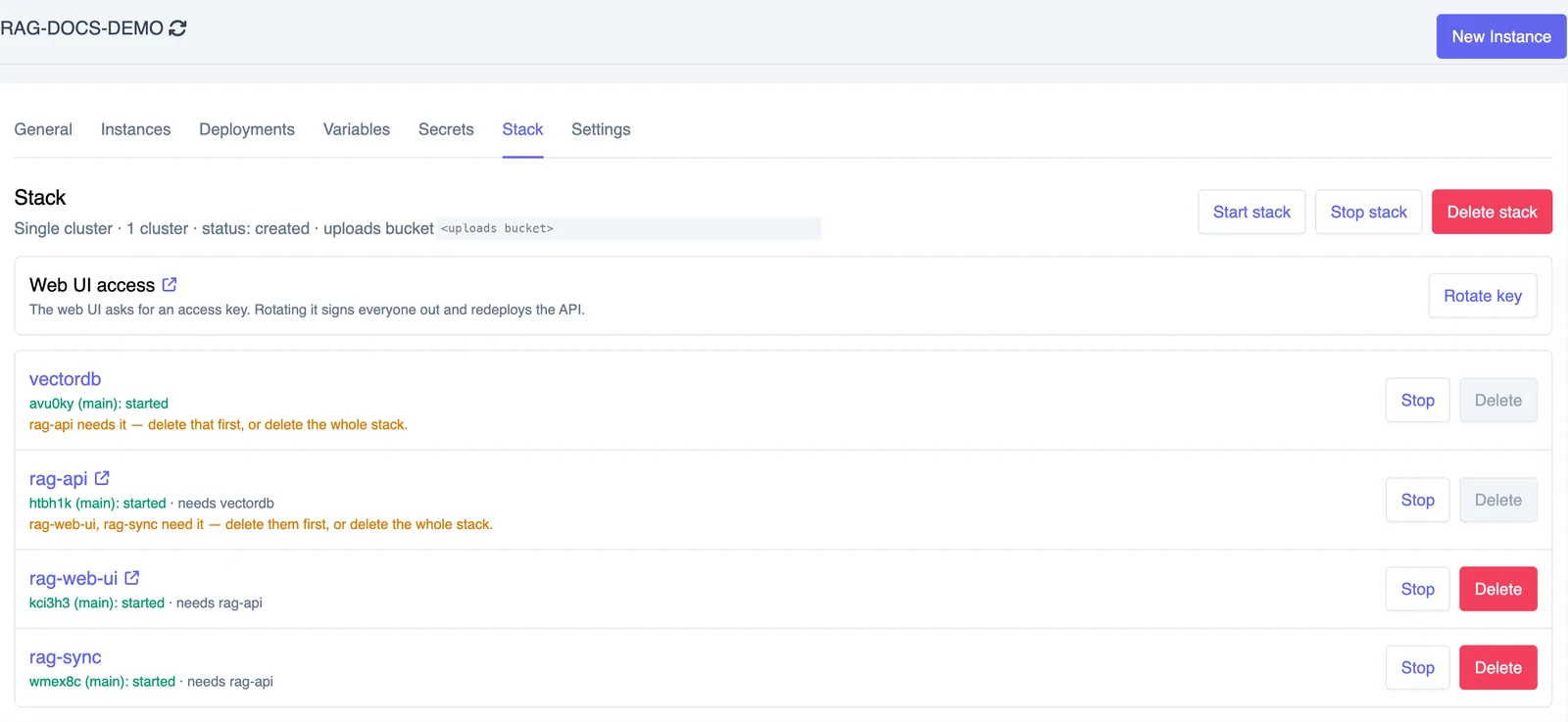
A RAG stack is four SeaGit applications deployed together into one cluster and managed as a single unit from the Stack tab. Each one gets its own IAM role with only the permissions it needs.
- vectordb — Qdrant, with its index on an encrypted EBS volume.
- rag-api — embeds questions with Amazon Titan Text Embeddings v2, retrieves the top passages from Qdrant, and asks an approved Bedrock chat model to answer from them.
- rag-web-ui (optional) — the chat, model picker and upload screen.
- rag-sync — one import job, CronJob or event consumer per data source, plus one for uploads.
Full reference: RAG Stacks.
Why this usually takes weeks
A production RAG service is much more than a model call. Doing it by hand means building and wiring every row below yourself. With SeaGit each one is part of the stack template.
| Piece of work | By hand | With SeaGit |
|---|---|---|
| Kubernetes cluster, networking, ingress, DNS and TLS | Days of Terraform and Helm | Pick a cluster SeaGit already runs |
| Vector database with persistent storage | Choose, deploy, size and back a volume | Qdrant on an EBS volume, sized in the form |
| Chunking, embedding and indexing pipeline | Write and operate ingestion code | Built in; chunk size and overlap are form fields |
| Keeping the index in sync with S3 | Cron jobs, S3 events, queues, retries, deletes | Pick "on a schedule", "on change" or both |
| Least-privilege IAM for S3 and Bedrock | Hand-written roles and bucket policies | Per-stack roles scoped to your folders and approved models |
| Answering API with citations | Build, secure and host an API | REST + OpenAI-compatible API with an API key |
| Chat UI with access control | Build a frontend and sign-in | Private web UI behind an access key |
| Which models people may use | Policy docs nobody enforces | Account and organization approved-model lists, enforced |
Before you start
- An AWS account connected as a provider.
- A started cluster in an environment. The Getting Started guide walks through both.
- At least one approved chat model. An account admin chooses which Bedrock models the account allows, and each organization can narrow that list further (Approved models in the sidebar). See Approved models.
- For Anthropic, Meta and Mistral models: model access enabled for the AWS account in the Amazon Bedrock console. Amazon Nova models work without extra steps.
Deploy the RAG stack
Step 1 — Open the RAG Stack template
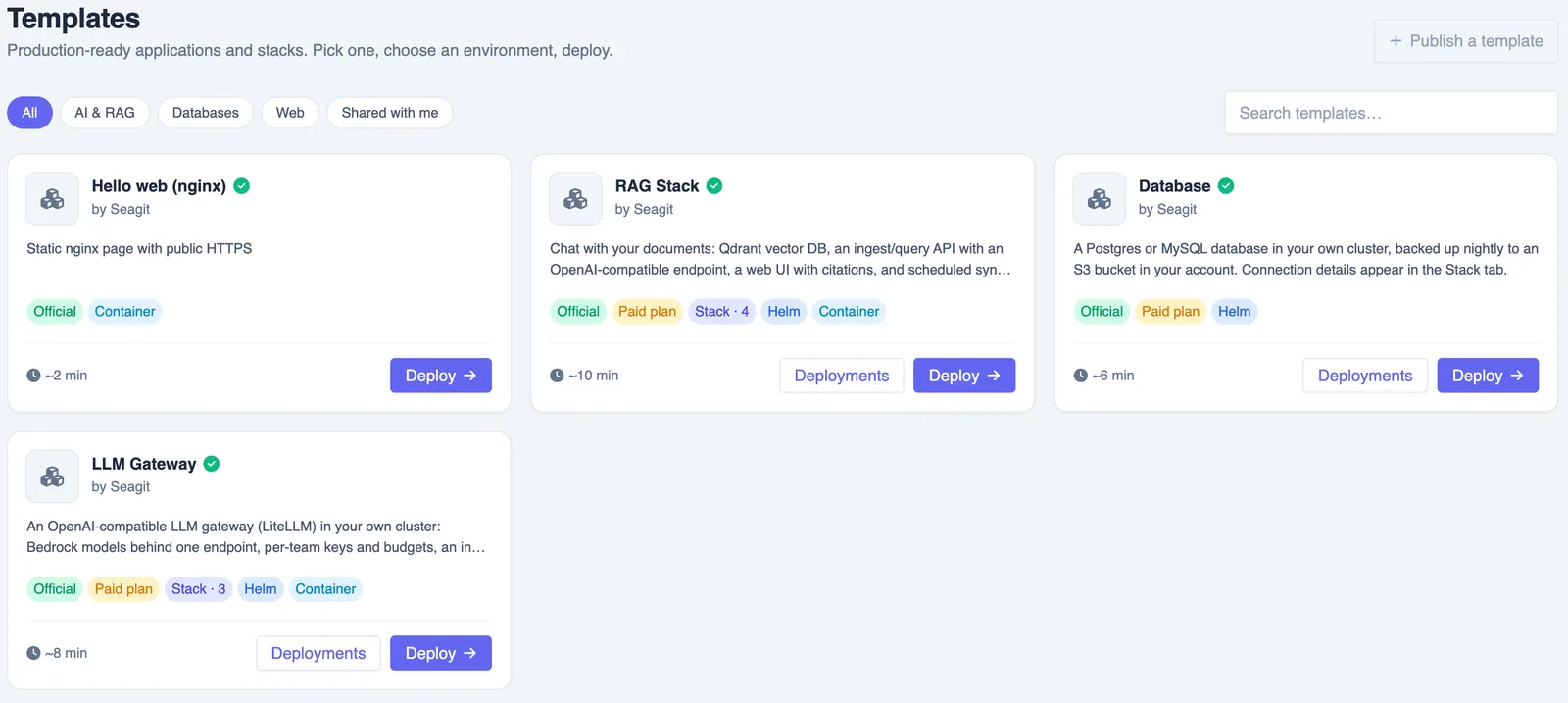
In your organization, go to Applications → Templates and choose RAG Stack, then Deploy. The deploy wizard has four short steps; every field has a sensible default.
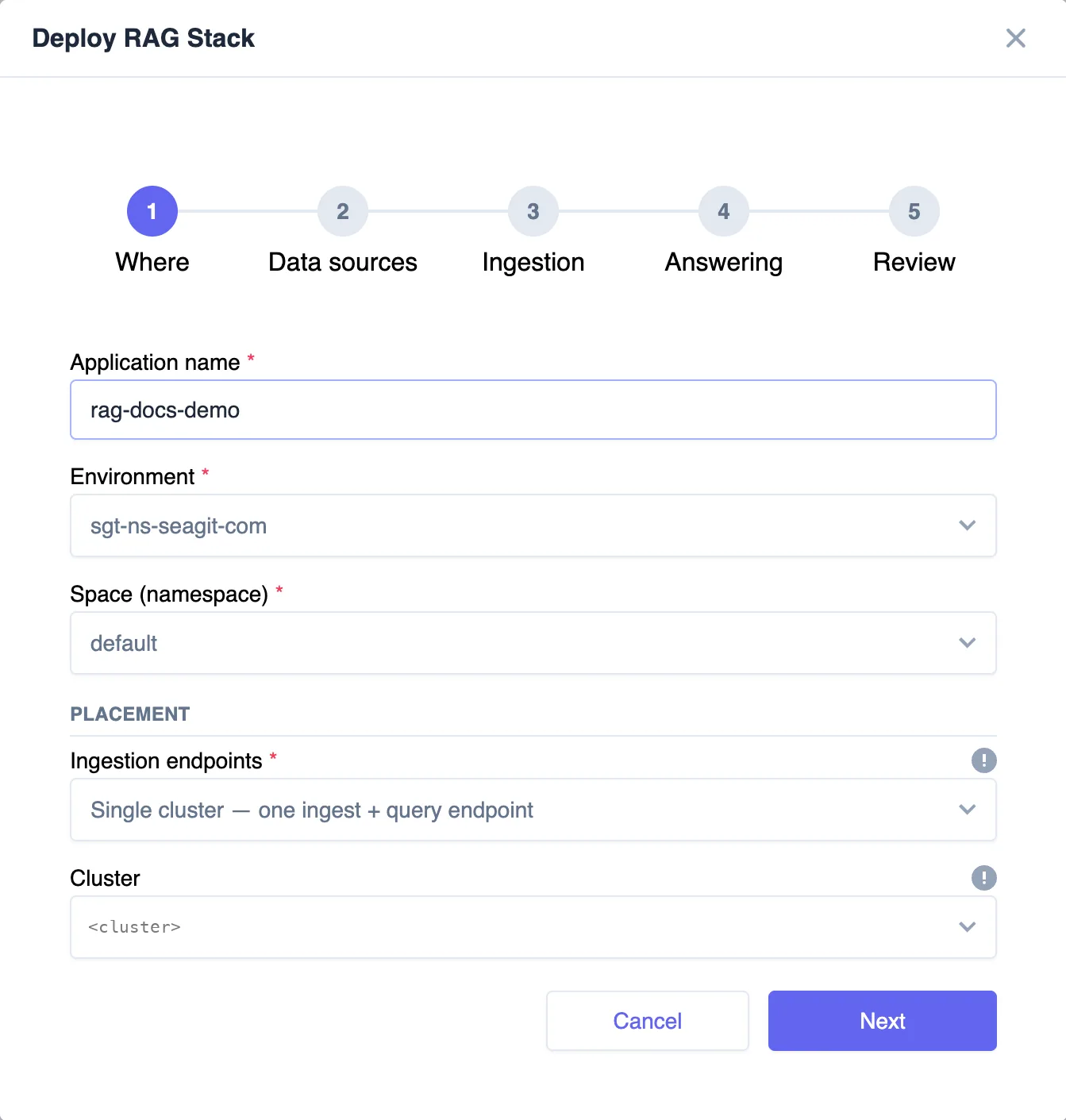
Step 2 — Where it runs
- Environment and cluster — the cluster list follows the environment you pick.
- Ingestion endpoints — single runs one stack on one cluster. Multi-cluster runs a complete stack on every started cluster of the environment, each building its own index from the same sources, for resilience and lower latency.
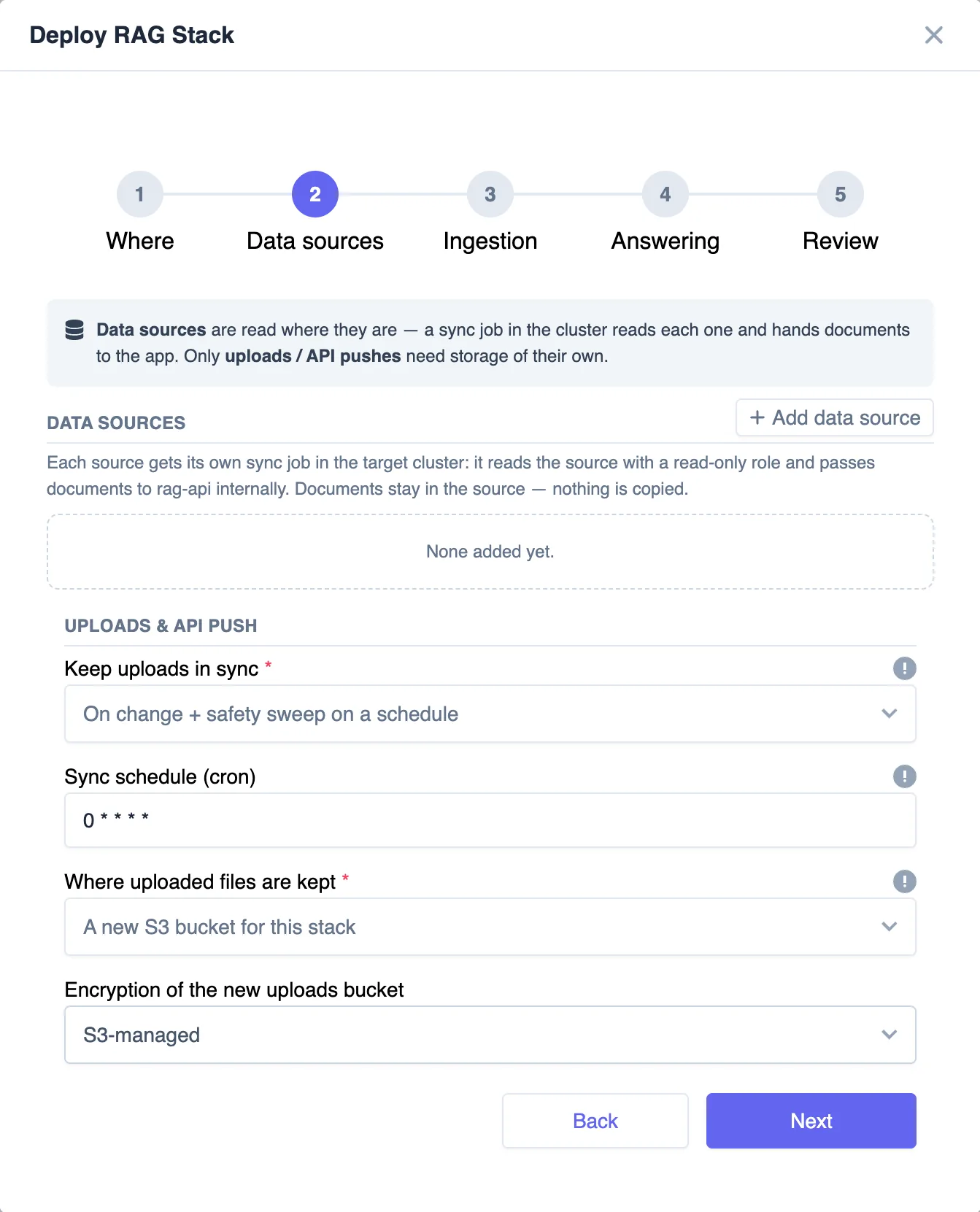
Step 3 — Your documents
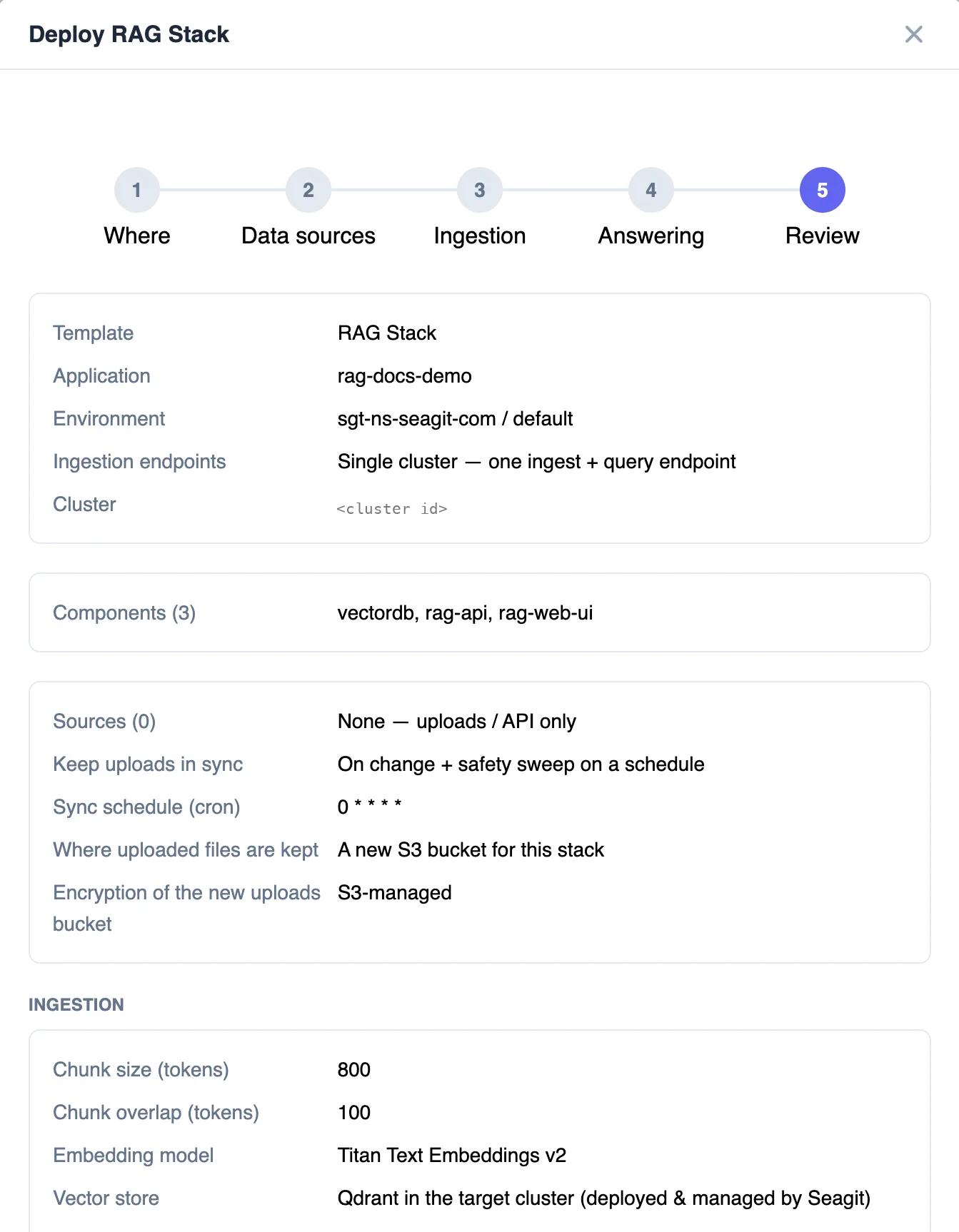
Data sources are S3 buckets the stack reads. For each one choose a folder, the file types to index, whether to import the files already there, and how to keep it in sync.
Uploads are files people add through the web UI or the API. Choose where they are kept and how they become searchable:
- Where uploaded files are kept — a new S3 bucket created for the stack, or your existing bucket (in this or another AWS account). For an existing bucket you also choose the folder and whether to import existing files now.
- Keep uploads in sync — On change (S3 events) makes a new file searchable within seconds; On a schedule picks files up on each run; On change + safety sweep (the default) does both; Off turns uploads off for the stack.
Access options, cross-account buckets and what each sync mode deploys are in RAG Stacks: documents and sync.
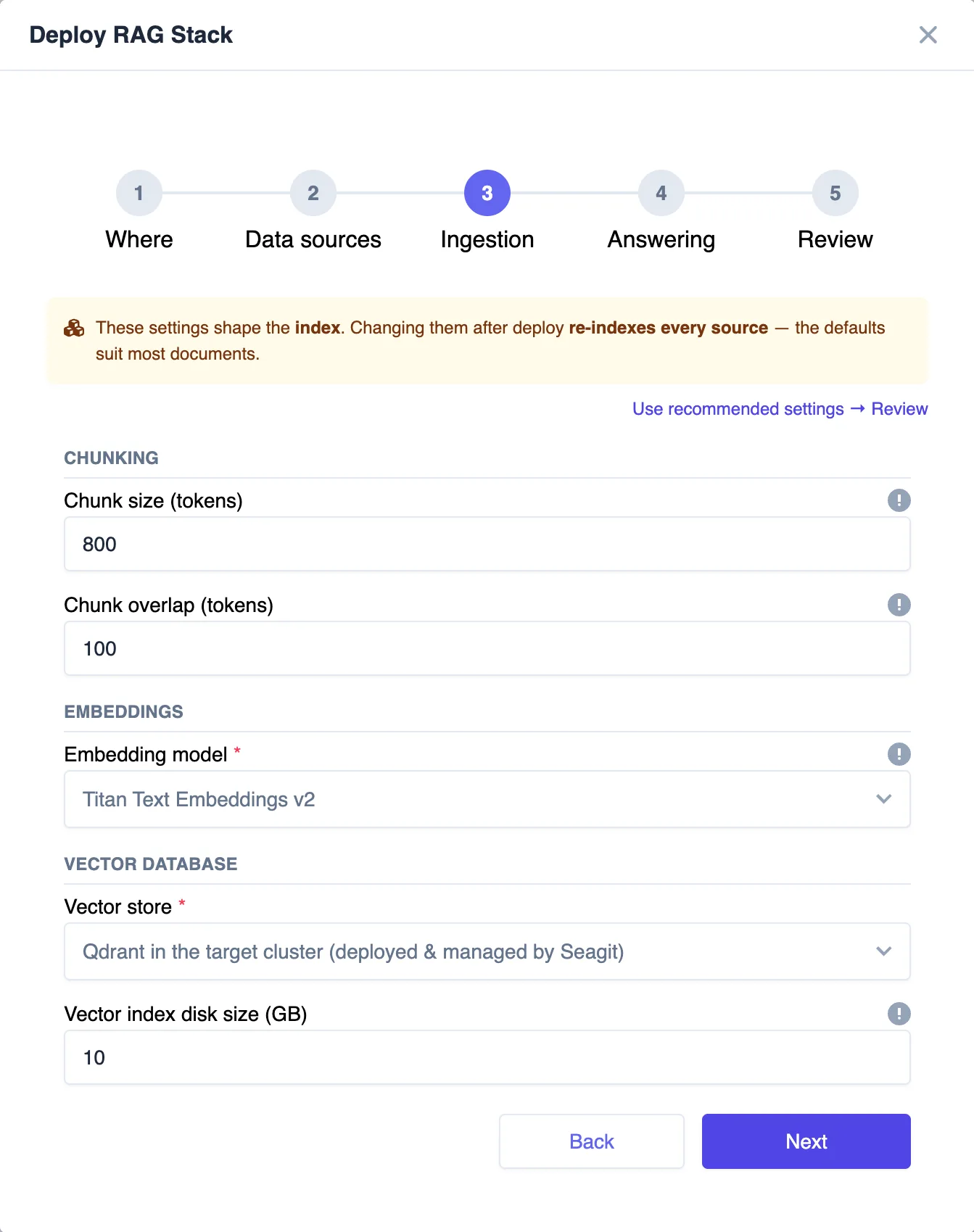
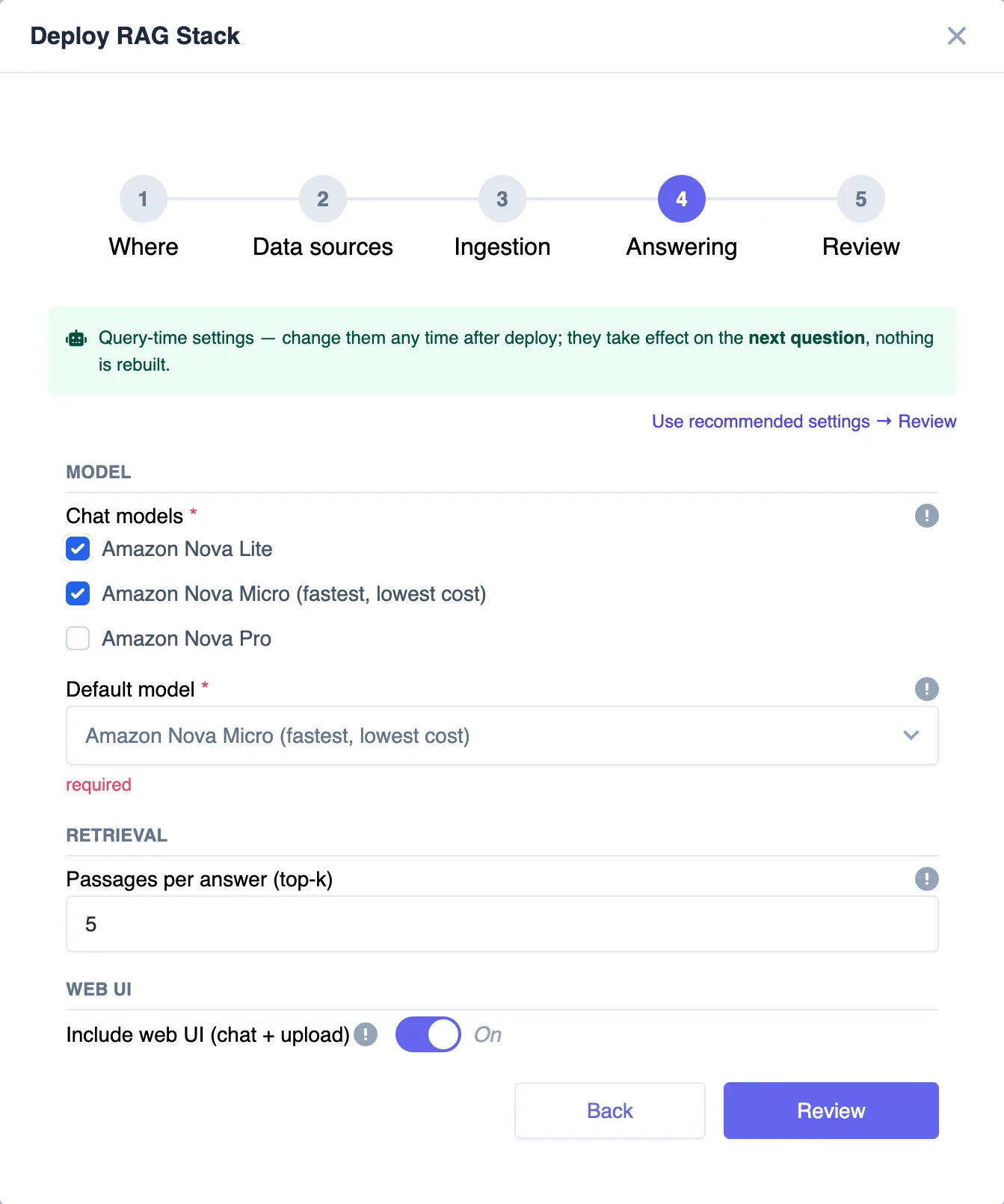
Step 4 — Pipeline, models and answering
- Chunk size and overlap — smaller chunks give more precise citations; larger ones give the model more context.
- Embedding model — Amazon Titan Text Embeddings v2. Questions and documents use the same model.
- Vector index disk size — the Qdrant volume; grow it later if needed.
- Chat models — the models people can pick in the web UI and the API. Only models your organization approves are listed. Pick a default model for questions that don’t name one. See how model selection works.
- Passages per answer (top-k) — how many matching chunks the model sees; 5 suits most documents.
- Include web UI — adds the chat and upload UI.
Step 5 — Deploy and save your keys
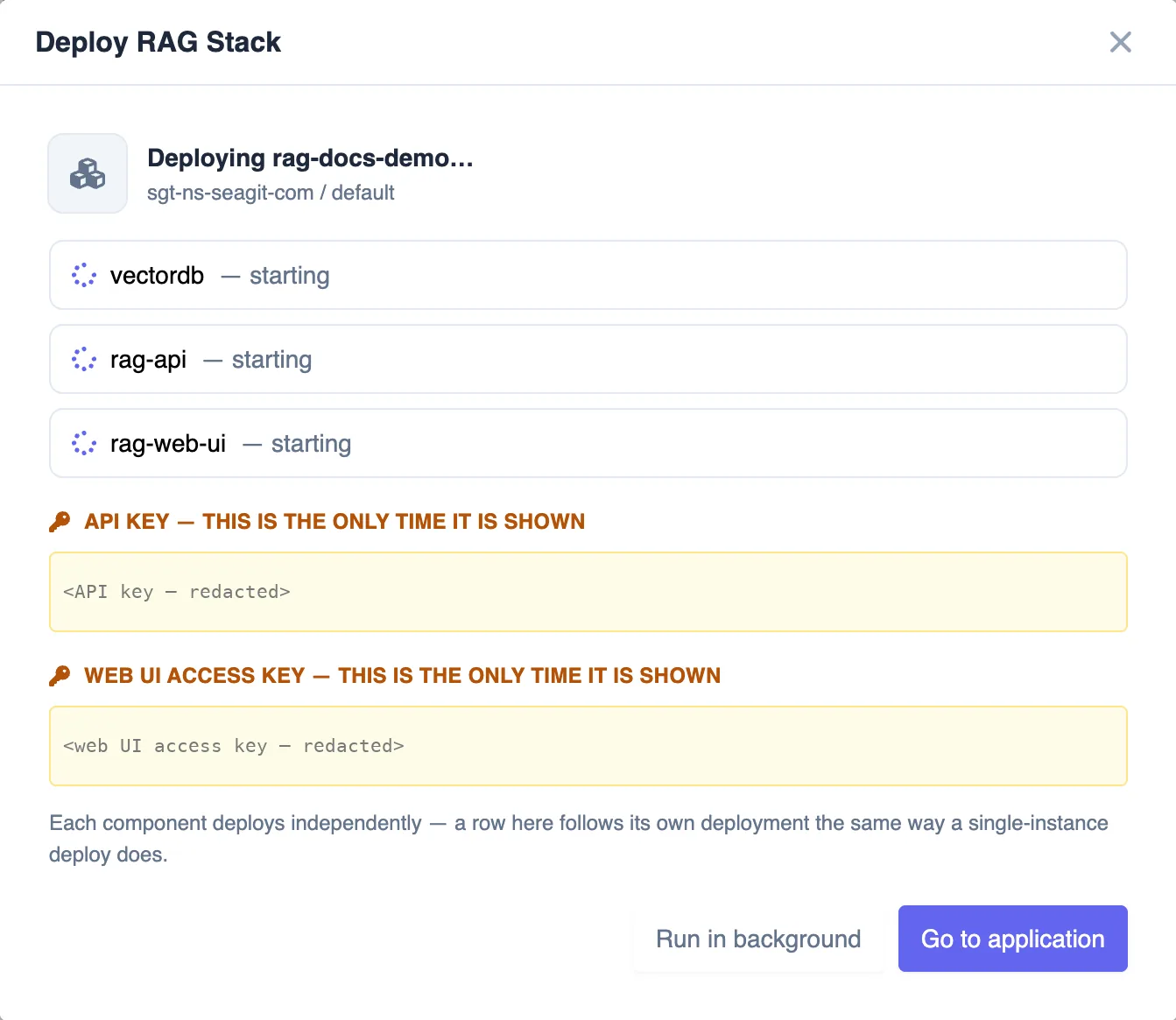
Select Deploy. SeaGit shows two keys once — copy them before closing the dialog:
- API key — for applications calling the RAG API.
- Web UI access key — for people signing in to the web UI.
The stack’s Stack tab shows each component as it starts, the URLs of the API and the UI, and the models the stack uses. Components are usually running within a few minutes; the HTTPS certificates follow shortly after.
Use it in the web UI
On the Stack tab, click Open the web UI, then:
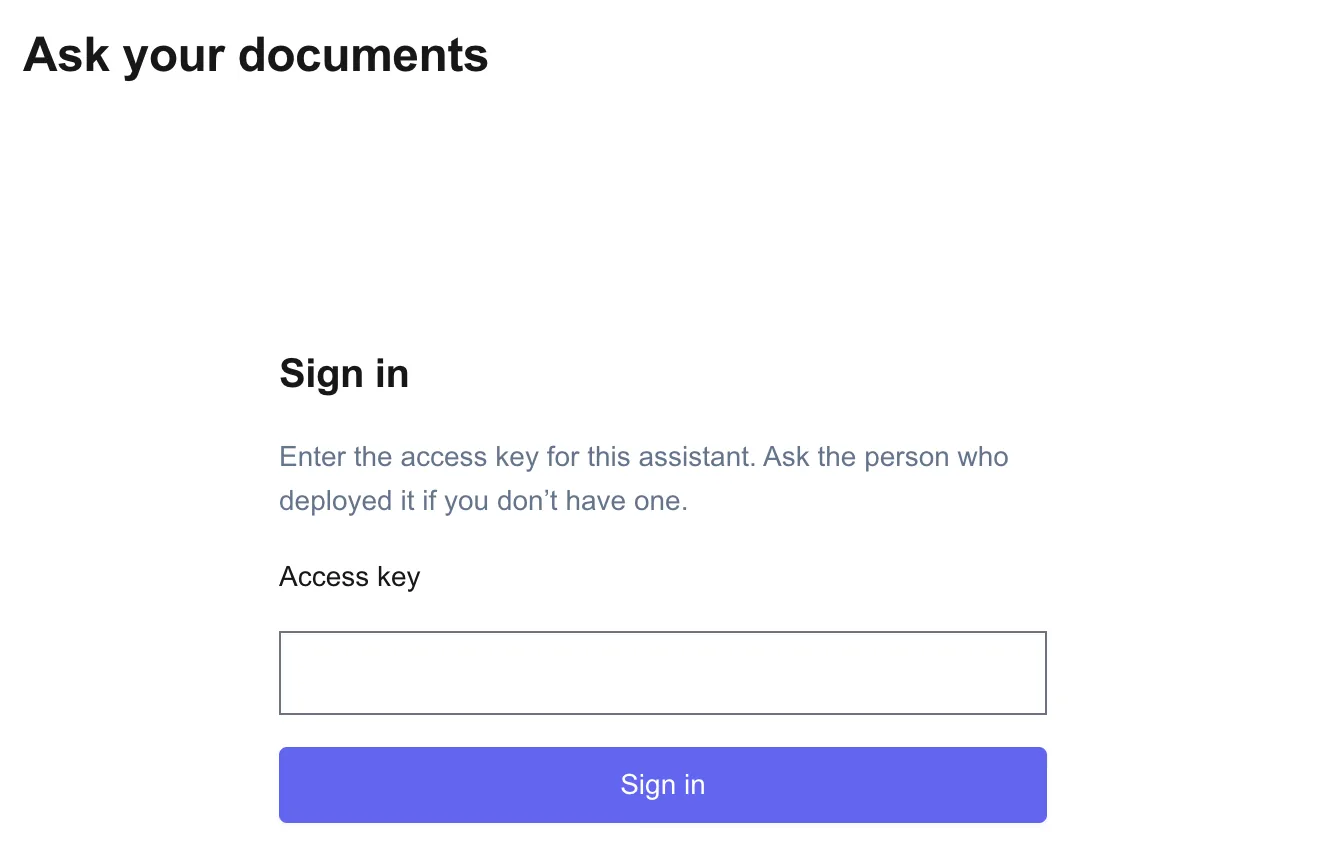
- Sign in with the web UI access key. The key is exchanged for a short-lived session; after 10 wrong attempts, sign-in is rate-limited.
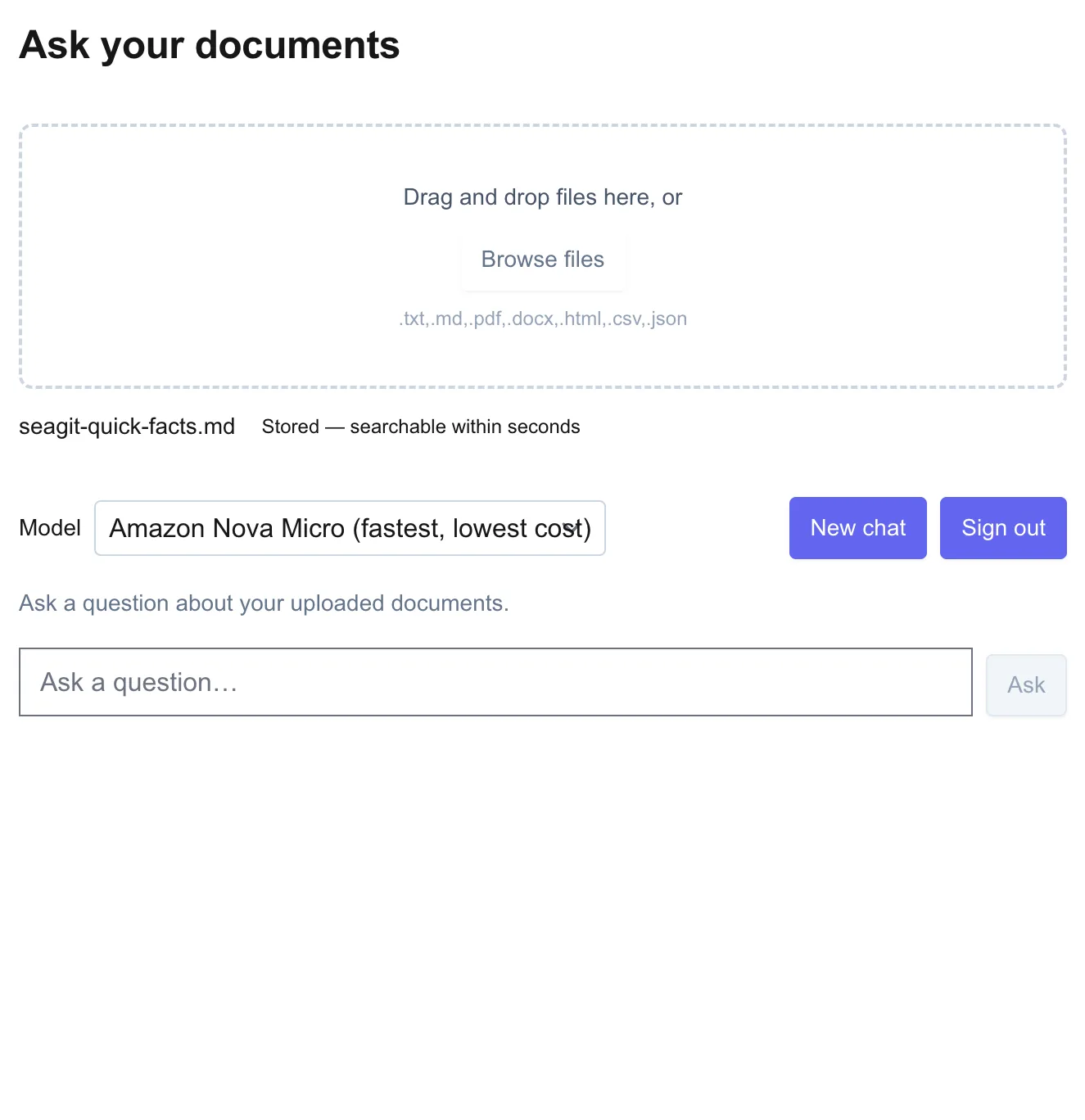
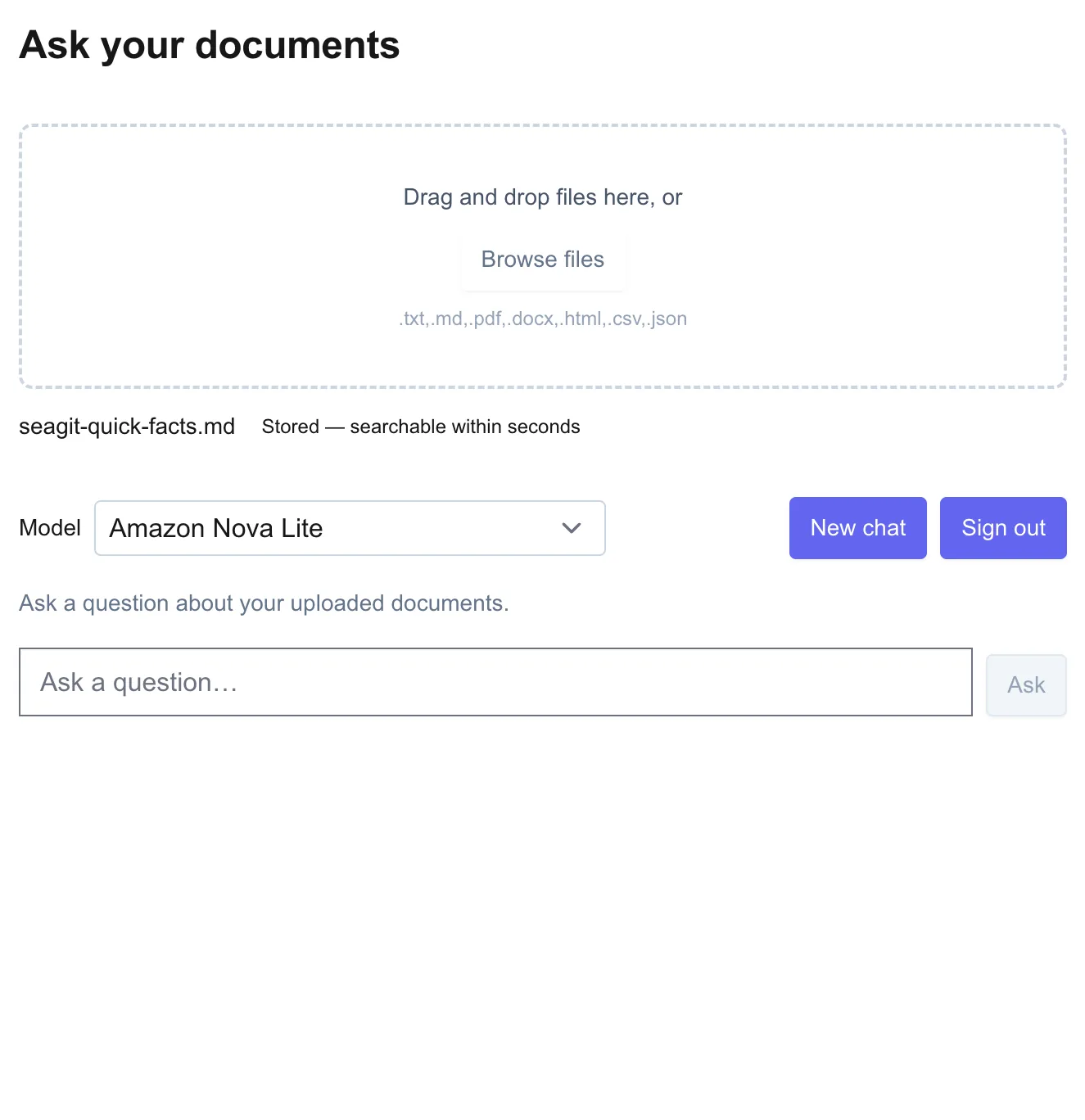
- Pick a model from the model selector. It lists only the models the stack was deployed with. The default model answers when you don’t pick one.
- Upload a document by dropping it into the upload box. It is stored in the uploads bucket and indexed according to the upload sync mode you chose.
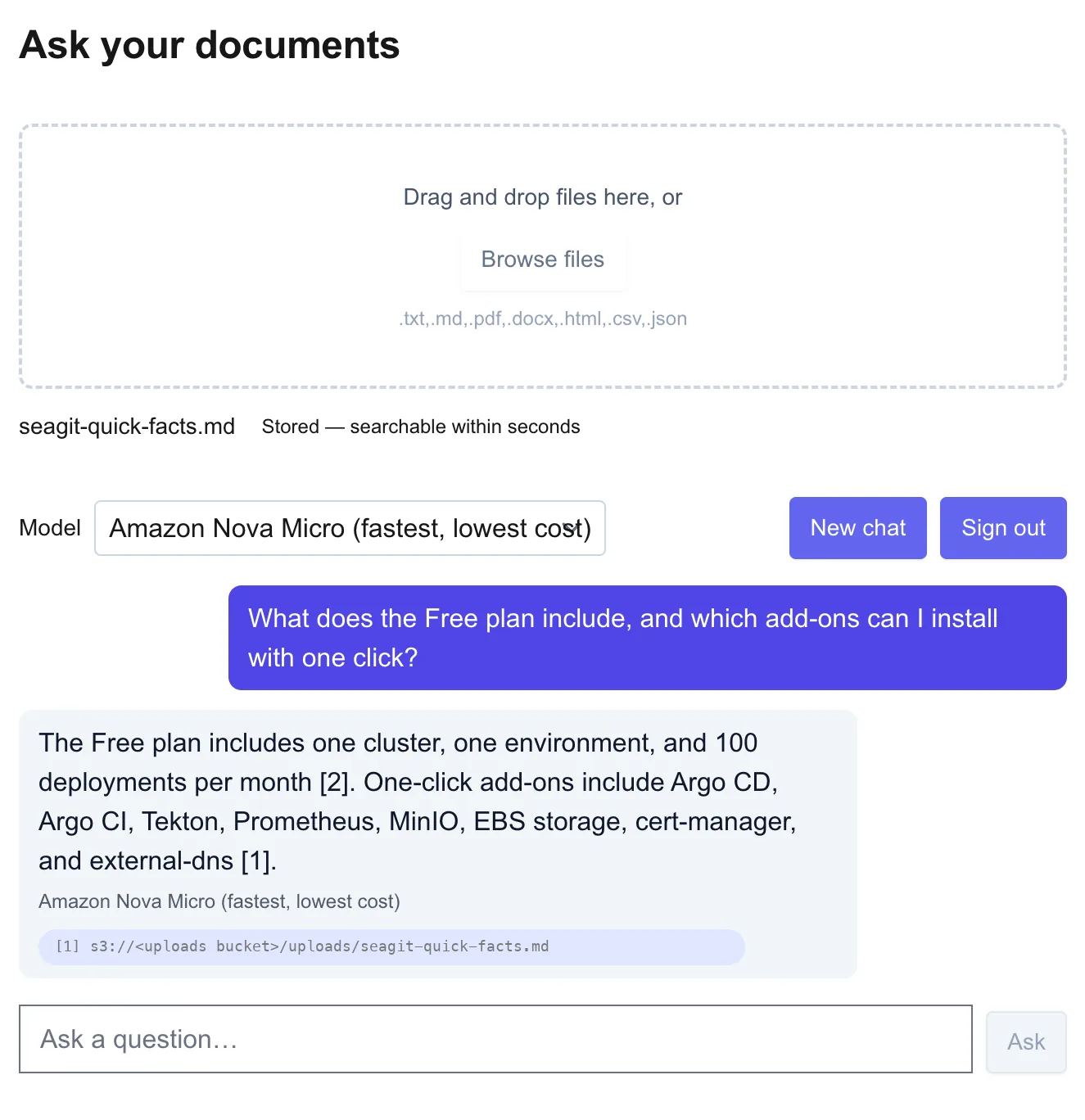
- Ask a question. The answer lists the passages it came from, so you can check each claim against the source.
From code, call the API with the API key:
curl -s https://<api-host>/v1/query \
  -H "Authorization: Bearer $RAG_API_KEY" \
  -H 'Content-Type: application/json' \
  -d '{"question": "What is our refund policy?"}'
Upload from code with POST /v1/ingest (multipart file). The response returns stored once the file is saved; with an on-change sync mode it is searchable a few seconds later.
How documents get in
There are two routes into the index. Both end in the same Qdrant index.
| Route | What puts files in | When they become searchable |
|---|---|---|
| Data source (S3 sync) | You copy files into the S3 bucket and folder you chose. The stack reads them; it does not write to them. | Per the sync mode of the source: on a schedule, on change, or both. |
| Uploads (web UI or API) | Someone drops a file into the web UI, or the app calls POST /v1/ingest. The file is kept in the uploads bucket. | Per the upload sync mode: On change (S3 events), On a schedule, On change + safety sweep (default), or Off. |
Both routes can be used together. Files already in a data source folder are imported when you choose import existing files now.
Model selection
Which Bedrock chat models a stack may use is decided at three levels, each a subset of the one above:
- Account — an admin chooses all catalog models or a list, in account settings under Approved models.
- Organization — Approved models in the organization sidebar narrows the account list. If nothing is approved, no model is available.
- Stack — the chat models you pick in the deploy wizard, and one default.
The rules are enforced. The stack’s IAM role can only invoke the models it was deployed with. If an admin later removes a model, the Stack tab warns about stacks still using it, and the next redeploy from the Stack tab drops the model and its permission.
Want one endpoint in front of many models, with per-team keys and budgets? See the LLM Gateway guide. Full rules: Approved models.
Security and privacy
- Your account. The stack runs in your AWS account, on a cluster in that account. Qdrant’s index sits on an encrypted EBS volume.
- Least privilege. Each component has its own IAM role: read-only access to the folders you chose, write access to the uploads folder, and permission to invoke only the approved chat models and the embedding model.
- Keys. The API key and the web UI key are shown once. The web UI key can be rotated from the Stack tab; rotating signs everyone out.
Costs
AWS bills the resources the stack uses, directly to your account: the cluster nodes, EBS volumes, S3 storage and Amazon Bedrock model usage. This guide does not quote prices, because they depend on region, model and volume. Check the AWS pricing pages before you deploy.
Troubleshooting
- Qdrant stays queued. Its volume needs the EBS CSI add-on on the cluster. Install the add-on, then start the stack again.
- The web UI says a model is not enabled. Anthropic, Meta and Mistral models need model access for the AWS account in the Amazon Bedrock console. The message names the model.
- A model is missing from the picker. It was not approved for your organization, or it was not chosen for this stack. Check Approved models, then redeploy from the Stack tab.
- A new file does not appear in answers. Check the sync mode of its source or upload route. A scheduled sync waits for its next run.
More in RAG Stacks troubleshooting and the Troubleshooting guide.
Next steps
- RAG Stacks reference — architecture, sync modes, approved models, access keys and the full API.
- LLM Gateway — one OpenAI-compatible endpoint for your approved models.
- Troubleshooting — when a component doesn’t start.
- What is an MCP server? — connecting AI apps to tools and data.
Frequently asked questions
How long does it take to deploy a RAG stack with SeaGit?
A few minutes. On our own clusters the four components (vector database, RAG API, web UI and sync jobs) report started in about one to three minutes, and the HTTPS certificates for the stack URLs are issued a couple of minutes later. Building the same stack by hand usually takes weeks.
Which cloud and which models are supported?
Stacks run on your own AWS account, on a cluster SeaGit manages. Answers come from Amazon Bedrock models (Amazon Nova, Anthropic Claude, Meta Llama, Mistral) that your account and organization approve; documents are embedded with Amazon Titan Text Embeddings v2 and indexed in Qdrant.
Which models can people pick in the web UI?
Only the chat models that your account and organization approve and that you choose for the stack. The API lists the same models at /v1/models, and a request that names any other model is refused with HTTP 400.
Can the stack read documents from an S3 bucket I already have?
Yes. Add the bucket as a data source, or keep uploads in it. SeaGit only adds its own access rules for the folder you choose, works with buckets in another AWS account, and can import the files already there when the stack is deployed.
How quickly does a new document become searchable?
With "On change (S3 events)" a new or updated file is searchable within seconds. With "On a schedule" it is picked up on the next scheduled run. "On change + safety sweep" does both, so nothing is missed.
Who can use the web UI?
Only people with the stack’s web UI access key. It is shown once when the stack is created and can be rotated from the Stack tab; rotating signs everyone out.
What does it cost?
AWS bills the resources in your account: the cluster nodes, the EBS volumes, S3 storage and Amazon Bedrock model usage. This guide does not quote prices; check the AWS pricing pages for your region.